


I have a habit I am not especially proud of, but not entirely ashamed of either. I buy technology to make my life better, and then I use roughly 5% of it.
Not because the tool is bad. Because configuring it fully requires a block of attention I never schedule, and the half-configured version works well enough that I stop noticing. The device gets used the way a smartwatch gets used as a watch. Technically functional. Almost entirely wasted.
Back in March, when I wrote about switching to voice dictation, I made a passing comment I keep coming back to: anytime I feel friction while working, I stop and ask whether there is a better way to operate.
That is an easy sentence to write. It is a harder thing to do at 2 p.m. on a Tuesday when the friction is small, and the deadline is not.
So here is the more useful version of the idea:
Most of the annoyances in your day are not twenty-minute problems waiting to be solved. They are twenty-minute problems you have been solving manually, five seconds at a time, for two years.
This week I finally sat down with two of mine.
I have two high-end Macs, and neither has ever stopped macOS from behaving in ways I didn't ask for. Let’s dig into both fixes, including the parts that did not go smoothly, because the messy version is more useful than the tidy one.
Fix one: the pedal in the drawer
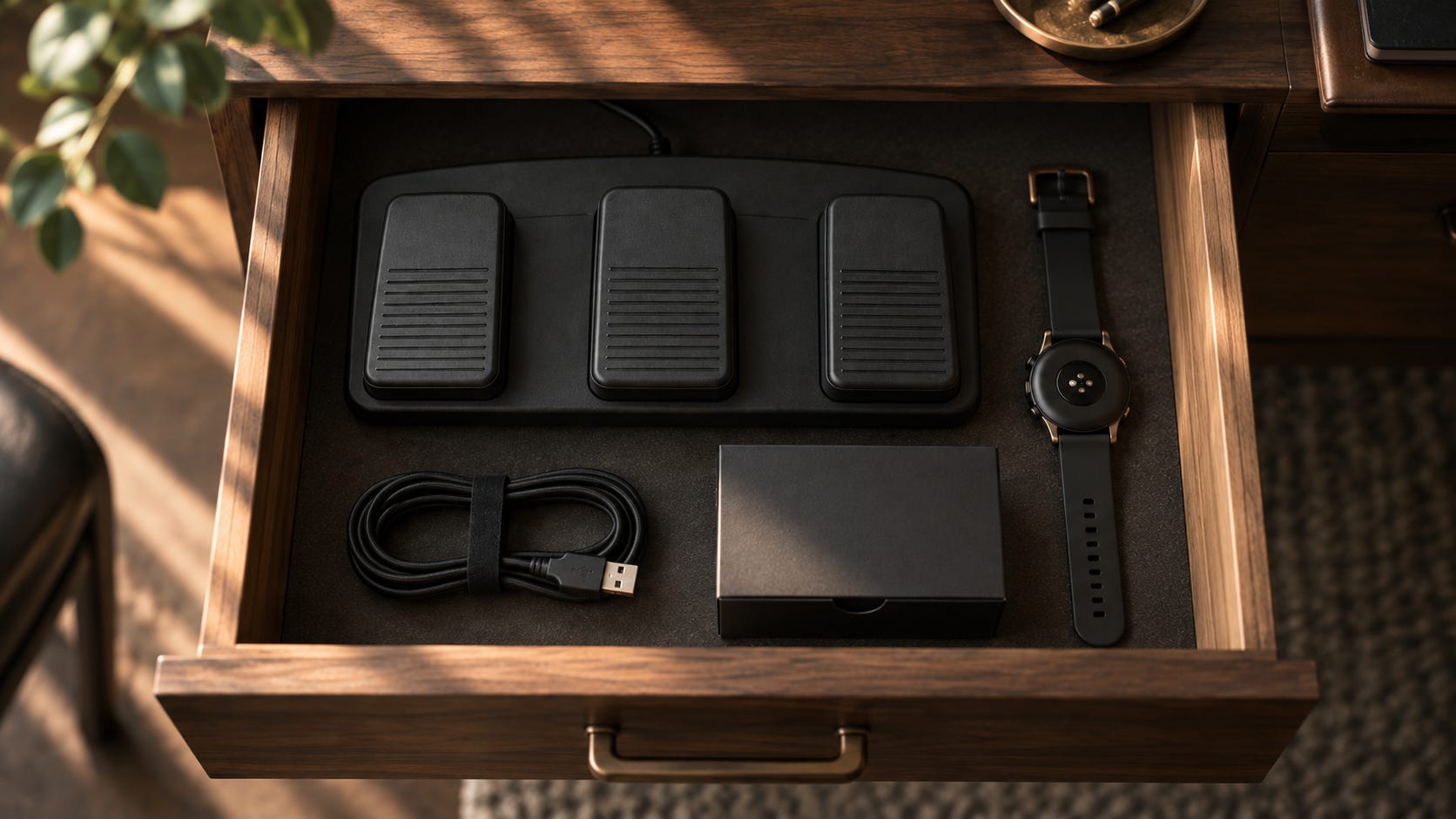
Somebody recommended an Elgato Stream Deck Pedal to me a while back. Three pedals, heavy metal base, swappable springs, $89.99.
I bought it, plugged it in once, and put it in a drawer upstairs.
I do not even remember what I was going to use it for, but I am sure I had some grand vision.
Then I saw someone mention using a foot pedal to trigger Wispr Flow, the dictation tool I now use for most of my writing.
That clicked immediately.
I dictate dozens of times a day, and every one of those starts with a keyboard shortcut, which means my hands leave whatever they are doing so I can talk instead of type. A small, constant tax.
Meanwhile my foot has nothing to do at all.
What I wanted was true push-to-talk:
Pedal down, start listening. Pedal held, keep listening. Pedal up, stop and insert the text.
Three things stood between me and that.
The default shortcut was never going to be the easiest option. Flow’s push-to-talk shortcut on a Mac defaults to the Fn key, and Fn is a special case on the Mac, which is why Flow ships Control + Option as its fallback.
So I rebound push-to-talk to Control + Option. That worked perfectly from the physical keyboard, and it had another advantage: it is modifier-only, so I am not accidentally typing characters into whatever happens to be open. It also leaves Command + Control + Option available for Flow’s Command Mode.
A hotkey is not a hold. Stream Deck’s standard Hotkey action sends a shortcut. Push-to-talk needs a genuine key-down when the pedal goes down and a genuine key-up when it comes back up.
The Key Hold plugin from the Elgato Marketplace does exactly that, so its Hold Key action went on the left pedal.
And then it simply did not work.
Everything looked right on screen. Control + Option started and stopped dictation perfectly from the physical keyboard, which told me the problem lived somewhere on the Stream Deck side.
The temptation at that moment is to rip the plugin out and try another one.
Instead, I opened the plugin’s log.
The actual answer was sitting there:
helper failed to start: .../bin/keyholder EACCESThe plugin ships a small native helper called keyholder that does the real work of holding the keys down. The helper was there, but macOS was refusing to execute it because the executable permission was missing.
One chmod restored the executable bit, I restarted Stream Deck, and it worked exactly as intended.
Holding the pedal while I talk feels nothing like pressing a shortcut. It feels like using a transcription pedal, which is to say it feels like it should have worked this way from the start.
One caution worth writing down: a plugin update could replace that helper and strip the permission again. If the pedal quietly dies after an update, the log and that EACCES line are the first places I will look.
There is probably an attention-span lesson buried in this too.
My first instinct when the plugin failed was not to diagnose it. It was to replace it. I do not think that instinct is unusual. We have gotten very good at trying something once, deciding it does not work, and moving on. I am certainly not immune to that.
In this case, thirty seconds spent reading a log saved me from starting the entire search over again.
Fix two: half a second, over and over
The second fix cost nothing at all.
I run multiple Spaces (Apple’s name for virtual desktops) all day, and I keep Reduce Motion turned on because sweeping animations genuinely make me motion sick.
The same thing happens when I am a passenger in a car, particularly when Luis is driving, although that may be an entirely separate issue.
Think real-life Mario Kart.
With Reduce Motion enabled, switching Spaces produced an ugly side effect for me: a brief black screen before the next desktop appeared.
Call it half a second.
Half a second is nothing.
Half a second every time you switch, all day long, each one punctuated by a black flash, is not nothing.
Nothing I tried suggested this was a hardware bottleneck. It happened on a specced-out MacBook Pro, which is not a machine anyone can reasonably accuse of being slow. Restarting the Dock did not touch it. The pause appeared to be part of macOS’s Space-switching transition rather than a performance problem.
Years ago, a utility called TotalSpaces made desktop switching instantaneous, but its old approach no longer works cleanly on current versions of macOS.
What replaced it in my setup is a small, free, open-source project on GitHub called InstantSpaceSwitcher, installed through its Homebrew tap:
brew install --cask jurplel/tap/instant-space-switcherTwo notes for anyone following along, because this is where people tend to make a bad decision.
The app is not signed through Apple’s developer program, so macOS may block it on first launch. The correct fix is the normal per-app exception under System Settings → Privacy & Security → Open Anyway. (Always make sure you actually trust the software or plugin, or script before you run it, and if you have suspicions, make sure you have verified it is safe.)
There is never a reason to disable Gatekeeper or System Integrity Protection for something like this, and any utility that demands you do is a utility that does not go on a machine holding client data.
InstantSpaceSwitcher also needs Accessibility access because it intercepts the gesture and substitutes a synthetic, extremely fast one that effectively skips the normal transition.
The result is about as simple as software gets:
Swipe, desktop.
No animation. No black pause. The next Space is just there.
My reaction the first time I tried it is not printable in a newsletter.
Total cost: zero dollars and one sitting.
One honest note
It would be fair to say that this was more difficult than it needed to be.
Some of this kind of customization is less fussy on Windows. macOS is particularly protective about software that wants to press keys, control the interface, or intercept gestures on your behalf.
In this case, that is exactly what I was asking two third-party utilities to do.
Much of what I described above is Apple’s protective layer doing exactly what it is designed to do: making it harder for software to simulate input or control parts of the system without permission.
I would still rather have those protections than not, given what sits on these machines. But there is no version of this where I pretend the finagling was necessary. It is part of the price of the platform, and it is worth knowing that going in.
The part where AI actually earned its keep
This is worth naming, since this newsletter spends a lot of time on AI and most of that time is spent on the flashy uses.
I did not solve either of these from scratch.
I opened a conversation with ChatGPT and described what I wanted to accomplish in plain language, as an outcome.
Not: “What is the API for macOS Spaces?”
Just: here is the annoyance, here is what I want instead, what are my options?
Then I worked through the answers, checked the settings myself, and read the log when something failed.
That may be the most useful thing AI changed in this whole exercise.
It did not magically fix either problem.
It changed the economics of whether the problems were worth fixing at all.
Before, a five-second annoyance might have had a twenty-minute solution, but finding that solution could mean an evening of Google results, old forum posts, Reddit threads, abandoned GitHub issues, and experiments that went nowhere.
The uncertainty was enough to make ignoring the problem rational.
Now I can describe the outcome I want in plain language and get to the useful part much faster. I still decide what gets installed, what permissions it gets, and whether the answer makes sense.
It does the digging.
I stay the one deciding what actually changes. But it can take the solution and implement it. You can grant access to another application, and it can change the settings. That is the magical part.
The unglamorous, genuinely useful version of AI: compressing the research phase of a small annoying problem enough that the twenty-minute fix stays a twenty-minute fix instead of quietly becoming a Saturday.
The distinction that matters
Not every annoyance deserves twenty minutes.
This is where advice like this usually goes wrong. It becomes “optimize everything,” which is really just permission to spend Saturday installing apps you will abandon by Thursday.
The line I try to hold is between the twenty minutes that retires a problem and the twenty minutes that adds one more thing to maintain.
Three questions before you spend it:
How often do I actually hit this? A few times a month, let it go. Dozens of times a day, and you have been paying that toll for years without ever counting it.
Does the fix use something I already own? Not always possible, but this is where some of the highest returns hide. The unopened box. The feature never enabled. The setting you did not know existed. You already paid for it. The only remaining cost is attention.
If it breaks in six months, what happens? A good fix degrades back to how you work today, which is exactly what both of mine do. A bad fix becomes a dependency, and then you have a new problem wearing a solution’s clothes.
What to do with this
Here is the assignment, and it is deliberately small.
Between now and next week, notice one thing that irritates you more than once a day. Not the big broken process. The small one. The click you always make twice. The file you always go hunting for. The shortcut your hands leave the keyboard to press.
Write it down the moment it happens, because you will not remember it later. That is exactly why these things survive for years: too small to remember, too frequent to matter.
Then give it twenty minutes and whatever you already own.
And if you would rather not troubleshoot it alone, this is something I would like to try for paid subscribers.
Send me one tech pain point to start.
The click you make twice. The app that will not behave. The thing you bought and never set up.
I will write back with what I would try, and when it is the kind of problem that is easier to show than describe, I will send a short screen recording instead.
I will also periodically write about some of the more interesting pain points readers send in or leave in the comments, along with the fixes that worked.
That is the part worth sitting with.
Neither fix required new hardware, a new subscription, or a rebuilt workflow. One was equipment already sitting in my house. One was a free utility somebody published on GitHub for no reason other than the same thing annoyed them.
The technology was already here.
What was missing was twenty minutes and the willingness to stop treating the annoyance as too small to fix.
Which brings me to what is next on the list.
I own an expensive digital camera that spends most of its life being an expensive object.
It can be used as a webcam.
Twenty minutes, a cable, and the right software would put it on every Zoom call I take, and I have quietly been hoping that looking slightly more cinematic on Zoom might take fifteen years off me.
I will report back.
But I suspect this is where we find the limits of what technology can actually fix.
This would be so much better if you were mentioning real computers that most people use and not those AppleMac things you discuss constantly. On and on and on.
but hey, just blame me and move on.
“Mario kart” - 😂
In seriousness, thanks for sharing and prompting to take time to consider ways to improve processes and tasks.